Wifi Manager
- 4.4
- Rating
- 100.00K
- Installs
- Free
- Price

 Analysis by App-foxy
I tend to judge a network utility by one simple question: does it help me understand and manage a connection faster than the phone’s built-in settings? Wifi Manager takes that practical route by bringing Wi-Fi management, network analysis, and file organization into one free tools app. That combination makes it more interesting than a basic screen for switching between saved networks, especially when I am trying to work out why a connection feels unreliable.
My experience with it is best described as useful rather than flashy. The app is aimed at people who want a clearer view of their wireless environment and a more organized way to handle files. It is not the sort of app I would install for entertainment or constant background interaction. I would open it when I need to inspect a connection, make a sensible network choice, or tidy documents without jumping between several unrelated utilities.
It comes from alatheertech.com and is listed as a free app for everyone. The current release is version 1.0.6, and it supports devices running Android 7.0 or later. Its average score is 4.4 from around 2.6 thousand ratings, with more than 100 thousand installs. Those figures suggest that it has found a real audience, although I still think the value depends heavily on whether you actually need network visibility rather than just a quick Wi-Fi toggle.
You May Also Like

 Blood Strike: 2.5 Anniversary
Blood Strike’s Loadouts Turn Every Drop Into a Tactical Gamble
A close look at Blood Strike’s custom loadouts: how fast access to signature weapons reshapes its battle royale rhythm, rewards preparation, and narrows the gap between fights.

 Pandora - Music & Podcasts
Pandora’s Music Is Easy to Start, but Harder to Recover
Pandora’s strength is its low-effort path from a seed to a station. Its weak spot is how much confidence it asks you to place in connection, setup, and quiet recovery.

 8 Ball Pool
 Is Built on Rivalries, Rematches, and Routine
A close look at the rivalries, rematches, shared routines, and unanswered safety questions that turn a quick pool match into a persistent mobile community.

 Samsung Music
’s Quiet Strength Is Playing What You Already Own
Its reach comes less from spectacle than from dependable access to a personal library. That simplicity is both the app’s strongest retention engine and its ceiling.

 AccuWeather: Weather Radar
AccuWeather Review: A Quick, Clear Forecast for Everyday Decisions
For everyday plans, the best forecast is the one you can understand quickly. AccuWeather makes rain timing, radar, and local conditions easy to act on, with a few trade-offs.

 Hill Climb Racing
Why Hill Climb Racing Still Turns Crashes Into One More Run
A tiny car, a bumpy hill and one more upgrade: Hill Climb Racing keeps resurfacing because its simple chaos makes every near-miss feel personal.
More From Our News Desk



Seeing the wireless environment instead of guessing
I find it helpful to start a Wi-Fi check by separating what I can observe from what I’m only guessing. In this section, I’d focus on how looking at the surrounding wireless environment can guide a simple, controlled comparison rather than prompt random setting changes. That practical approach also sets up the next question: how useful is it when I’m moving between different places?
The capability that matters most
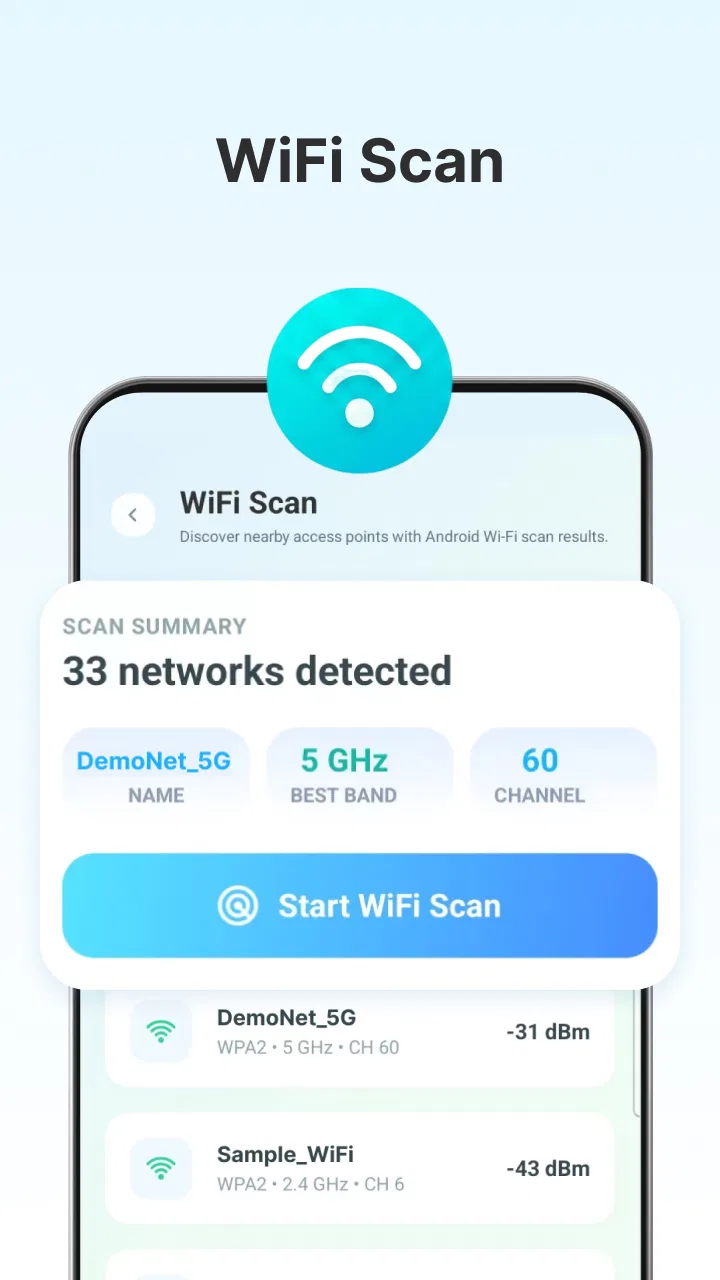
The strongest idea here is the network-analysis side. A normal Android Wi-Fi panel usually answers a narrow question: which networks are available, and which one am I connected to? A dedicated manager can be more useful when the problem is not simply choosing a name from a list. If a connection keeps dropping, feels slow in one room, or competes with several nearby networks, having a focused place to inspect the situation changes how I troubleshoot it.
I like this approach because it turns vague complaints into a more deliberate workflow. Instead of repeatedly disconnecting and reconnecting, I can first look at the available wireless environment, identify the network I am actually using, and decide whether the problem is likely to be local interference, a weak position in the home, or something that needs attention on the router or internet service. The app does not replace the router’s own controls, but it can make the first stage of diagnosis less frustrating.
That distinction is important. A Wi-Fi manager cannot repair a damaged cable, increase the speed of an internet plan, or solve an overloaded access point by itself. Its real effect is informational: it helps me make better decisions before I start changing settings. For an ordinary user, that can prevent random adjustments that create more confusion than improvement.
The file-organization element gives the app a second practical role, but I see it as supporting the main network task rather than defining the whole experience. When I am moving screenshots, downloaded documents, or exported files around while testing a connection, having organization tools nearby can reduce the need to open a separate file utility. That is convenient, though users who already rely on a preferred file manager may not find this part compelling enough on its own.
How I would use it during a connection problem
I would begin with the app before changing anything on the router. First, I would check the network currently in use and compare it with the other visible options. This is particularly useful in an apartment, office, or shared house where several wireless networks may appear at once. The goal is not to collect information for its own sake; it is to establish whether I am connected to the intended network and whether another option is available for a simple comparison.
Next, I would move to the physical test. I would check the connection in the room where the problem occurs, then repeat the observation closer to the router. If the experience improves substantially near the access point, the likely lesson is about placement or coverage rather than the phone itself. If the behavior remains poor everywhere, I would stop blaming distance and investigate the router, service, or device more broadly.
This is one of the more useful non-obvious workflows for the app: use it as a before-and-after tool, not as a one-time diagnostic screen. Check the network where the problem is visible, make one change, and check again. Changing several things at once makes it impossible to know what helped. A focused comparison is slower than tapping a generic “optimize” button, but it produces a result I can actually trust.
I would also avoid treating every nearby network as a better alternative. A different network name may belong to a guest connection, a weaker access point, or a service with restrictions. The app can help me see the choices, but I still need to recognize which network is mine and understand the consequences of switching. That is where human judgment remains more important than any utility interface.
A realistic everyday scenario
Imagine I am working from a bedroom and a video call keeps becoming unstable. My first instinct might be to restart the phone, but that does not tell me whether the wireless signal is the cause. I would open the manager, inspect the connection in that room, then walk toward the router and repeat the check. If the problem follows the room, I have a strong reason to test a different position, remove an obstruction, or move the work area.
After that, I would organize the call notes, screenshots, or downloaded documents created during troubleshooting. This is where the combined design makes sense: the network issue and the resulting files belong to the same short task. I do not need to maintain a complicated technical archive, but I can keep the relevant material together instead of leaving it scattered among recent downloads.
There is a useful discipline hidden in this scenario. I would record what changed in plain language: location, network selected, and whether the call improved. That makes the app more valuable than a quick glance at a signal indicator. It becomes part of a repeatable troubleshooting habit, which is especially helpful when the issue appears only at certain times or in certain parts of the home.
Where it differs from ordinary alternatives
The usual alternative is the Android settings panel. It is faster for a simple action such as connecting to a familiar network or forgetting an old one, and I would still use it for those routine jobs. Built-in settings also have the advantage of being deeply integrated with the operating system. If I only need to switch Wi-Fi on or off, opening another app is unnecessary.
Wifi Manager makes more sense when I want a dedicated view and a more intentional process. It places network analysis beside organization tools rather than leaving me to combine the system panel with a separate file browser. That can reduce app-hopping, but it also means the experience may feel broader than necessary for someone who wants a very specialized analyzer.
Another alternative is a standalone network-analysis utility. A specialist app may be preferable to a technically focused user who wants the deepest possible set of diagnostic controls. I would choose that route when I need advanced router testing or detailed measurements beyond everyday inspection. This manager is better suited to practical checks, network awareness, and a compact workflow than to replacing professional network equipment.
For files, the comparison is similar. A dedicated file manager may offer a more familiar structure for people who regularly rename, move, sort, and archive large collections. The organization tools here are most attractive when they support the network-related task or when I want a lightweight way to keep working material under control. I would not automatically abandon an established file workflow just because this app includes one.
The trade-offs I noticed
The biggest trade-off is scope. Combining network analysis and file organization is convenient, but it can also make the app less focused than a single-purpose tool. I would expect the most satisfied users to be those who appreciate having both functions available in one place. If I only care about file browsing, or only need a quick connection switch, the extra context may not justify installing another utility.
There is also a learning curve in interpreting network information. Seeing more than the basic Wi-Fi name does not automatically explain the cause of a problem. A user can easily mistake a visible network, a strong-looking signal, or a familiar label for proof that the connection is healthy. I would use the app as a guide for testing, not as an authority that makes the diagnosis for me.
Privacy and security judgment still belong to the user. I would avoid connecting to an unknown network merely because it appears stronger, and I would be careful when organizing sensitive files during troubleshooting. The app can help me manage the process, but it does not turn an untrusted network into a safe one. That is a crucial boundary for anyone using a network utility in public places.
Version 1.0.6 also makes me approach the app as a practical tool that may continue to evolve rather than as a mature replacement for every established utility. I would keep expectations realistic: use the functions that solve the immediate problem, and do not assume that a combined app will match a long-established specialist in every detail. That is not a criticism of the concept; it is simply the trade-off of choosing convenience and breadth.
Small habits that make it more useful
My first tip is to compare locations, not just networks. A connection that looks fine beside the router may behave very differently behind a wall or on another floor. Checking both places gives the information practical meaning and helps separate coverage issues from broader service problems.
My second tip is to make one change at a time. If I move the router, switch networks, restart the phone, and reorganize files all at once, I lose the ability to identify the useful action. A short sequence of controlled checks is much more valuable than repeatedly pressing buttons until the connection happens to improve.
My third tip is to use file organization as a record of the investigation. I would create a simple habit of keeping screenshots or notes from the same troubleshooting session together. That is particularly helpful when I need to explain the issue to someone else in the household or compare the behavior on another day. The app’s combined purpose becomes meaningful when the files support the network decisions rather than existing as an unrelated extra.
A fourth insight is to distinguish a network problem from an internet problem. The phone may be communicating well with the router while the router is having trouble reaching the wider internet. Network analysis can help me test the local wireless side, but I would not conclude that the service provider is at fault simply because a webpage loads slowly. I would compare behavior near the router and across more than one device before deciding what to report.
Who gets the most from it
I think the best match is a household user who occasionally troubleshoots Wi-Fi but does not want a highly technical toolkit. It is also a sensible fit for someone who frequently works in different rooms, manages a mix of personal and shared networks, and wants a single utility for connection checks and basic file organization. The free price lowers the barrier to trying it, and the everyone age rating makes it broadly approachable.
It may also help students, remote workers, and families who need a repeatable way to check whether a problem is tied to a location. The benefit is not that the app magically improves coverage. The benefit is that it encourages a clearer sequence: inspect, compare, change one thing, and observe again. For occasional troubleshooting, that structure can save more time than a collection of disconnected tools.
I would skip it if my needs are extremely narrow. Someone who only wants a system-level Wi-Fi switch has no real reason to add another app. A network professional seeking deep diagnostics may prefer a specialist analyzer. Likewise, a person already satisfied with a powerful file manager may see the organization side as unnecessary duplication. The app earns its place when its combined workflow matches the way I actually solve problems.
It is also not the right choice for someone expecting automatic repairs. I would not install it believing that it can guarantee faster internet, eliminate dead zones, or replace router administration. Its strength is helping me understand the situation and keep related work organized. That is a more modest promise, but it is also the one I find most credible.
My final assessment
After using it as a practical network companion, I see Wifi Manager as a useful middle ground between basic phone settings and highly specialized diagnostic software. The network-analysis capability is the reason I would install it. It gives everyday connection problems a clearer starting point, especially when I compare rooms, check available networks, and make changes methodically.
The file-organization tools add convenience when I am collecting screenshots, documents, or notes during that process, although they will not replace a dedicated file manager for everyone. That balance is central to the decision: this is a combined utility, not a perfect specialist in two separate categories.
My recommendation is straightforward. If you often wonder whether poor Wi-Fi comes from your location, your chosen network, or the wider connection, the app is worth trying as a free diagnostic aid. If your needs stop at quick network switching or advanced professional testing, another option may suit you better. Its real strength is turning wireless troubleshooting into a repeatable, organized task instead of a cycle of guesses.
FAQs for Wifi Manager
01What is Wifi Manager and what can I use it for?
Wifi Manager is an Android utility designed to help you view, manage, and connect to available wireless networks more conveniently. After installing it, you can usually see nearby Wi‑Fi connections, check signal strength, review network details, and manage saved connections from one place. It is useful for users who frequently switch between home, work, public, or mobile hotspot networks.
02Does Wifi Manager reveal Wi‑Fi passwords or connect to protected networks automatically?
Wifi Manager cannot magically bypass Wi‑Fi security or reveal the password of a network you do not own. Protected networks still require the correct credentials, and access depends on your device and Android version. The app may help manage networks whose passwords are already saved on your phone, but it should not be considered a hacking tool or a way to access private connections without permission.
03Is Wifi Manager safe to install and what permissions might it request?
The app’s safety depends on the version you download and the source used for installation, so it is best to obtain it from a trusted app store. Wi‑Fi management tools may request access to nearby devices, location, network information, or system settings because Android uses these permissions to scan wireless networks. Review the permission list carefully and avoid granting access that seems unrelated to the app’s main purpose.
04Will Wifi Manager improve my internet speed or Wi‑Fi signal?
Wifi Manager can help you identify connection problems by displaying information such as signal strength, network status, and sometimes channel usage. However, it cannot increase the physical range of your router or make a slow internet plan faster. Its main benefit is better monitoring and network selection. For real improvements, you may need to reposition the router, reduce interference, update equipment, or contact your internet provider.
05Is Wifi Manager compatible with every Android phone and Wi‑Fi network?
Compatibility can vary depending on your Android version, device manufacturer, and the features supported by the particular Wifi Manager release. Basic functions such as viewing networks may work on many phones, while advanced controls can be restricted by newer Android security policies. Some routers, enterprise networks, or newer Wi‑Fi standards may also limit the information the app can display or the actions it can perform.
Pros
- Quickly displays nearby Wi‑Fi networks and their signal strength.
- Helps identify the best available channel for a more stable connection.
- Useful tools for checking network details and connection quality.
- Simple interface that is easy for beginners to understand.
- Can help troubleshoot weak or unreliable wireless connections.
Cons
- Some features may vary depending on Android version and device support.
- Advanced network tools can be confusing for users without technical knowledge.
- May request location permission to scan nearby Wi‑Fi networks.
- Signal readings can change quickly and are not always perfectly accurate.
- Ads or premium features may limit access to some tools.

Wifi Manager
Gallery